
LobeChat Configuration
LobeChat is the web chat tool of LobeHub. This is about integrating OpenAI or OpenAI-compatible providers into LobeChat: first get the API Key, Base URL, and model name from the provider's backend, and then fill them into LobeChat's Settings - Language Model.
First understand what this page is doing
The official documentation places the configuration entry in Settings inside Language Model. You can think of it as a 'model provider management page': after enabling the OpenAI provider, LobeChat will know where to send requests, which Key to use, and which models appear in the chat box.
If your provider is an AI provider, you can still choose OpenAI on the LobeChat page. The only difference is API Key and API Proxy Address. You need to fill in your own AI provider information, not the OpenAI official default address.
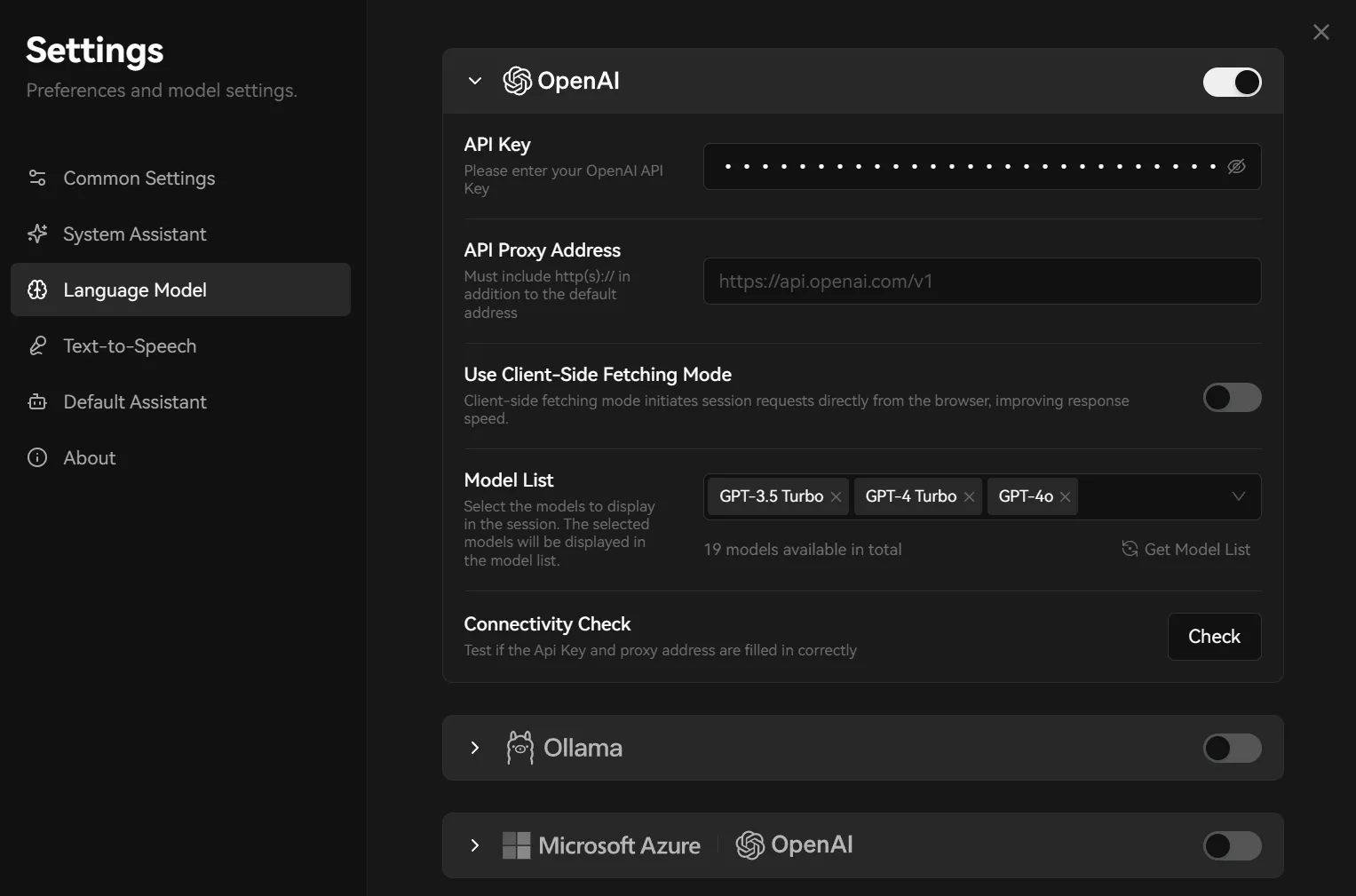
How should the several fields be filled in?
| Configuration item | Filling Method |
|---|---|
| OpenAI switch | First, open this provider. If the switch is not turned on, even if the Key is filled in, the corresponding model may not be visible on the chat page. |
| API Key | Enter the Key you created in the provider's backend. It may also be called a token, Key, or secret key. Do not use the example content from the screenshot. |
| API Proxy Address | This is the Base URL / API link. The official website's default example is https://api.openai.com/v1; the AI provider needs to be changed to the API link given to you by the backend, some include /v1, some do not. |
| Use Client-Side Fetching Mode | Ordinary users should first follow the provider's tutorial instructions. If the provider indicates that a client request is required, then enable it; if you have a self-built deployment and the server forwards it uniformly, it usually does not need to be enabled. |
| Model List | Which models can be selected on the chat page is determined here. Give priority to obtaining the model list; if retrieval fails, manually add them according to the model names in the provider's backend. |
| Connectivity Check | Used to check whether the Key and API Proxy Address can connect. If the check fails, first check the Key, Base URL, and model permissions. |
Configuration Steps
- Open LobeChat and go to Settings - Language Model. If the interface is in English, go to Settings - Language Model.
- Expand the OpenAI section and turn on the switch on the right.
- In API Key, enter the Key generated by the provider backend.
- In API Proxy Address, enter the Base URL / API link provided by the provider backend. Do not guess whether you need to add it yourself
/v1, follow the backend example. - Click Get Model List to get the model list; if the retrieval fails, manually add the backend model name to Model List.
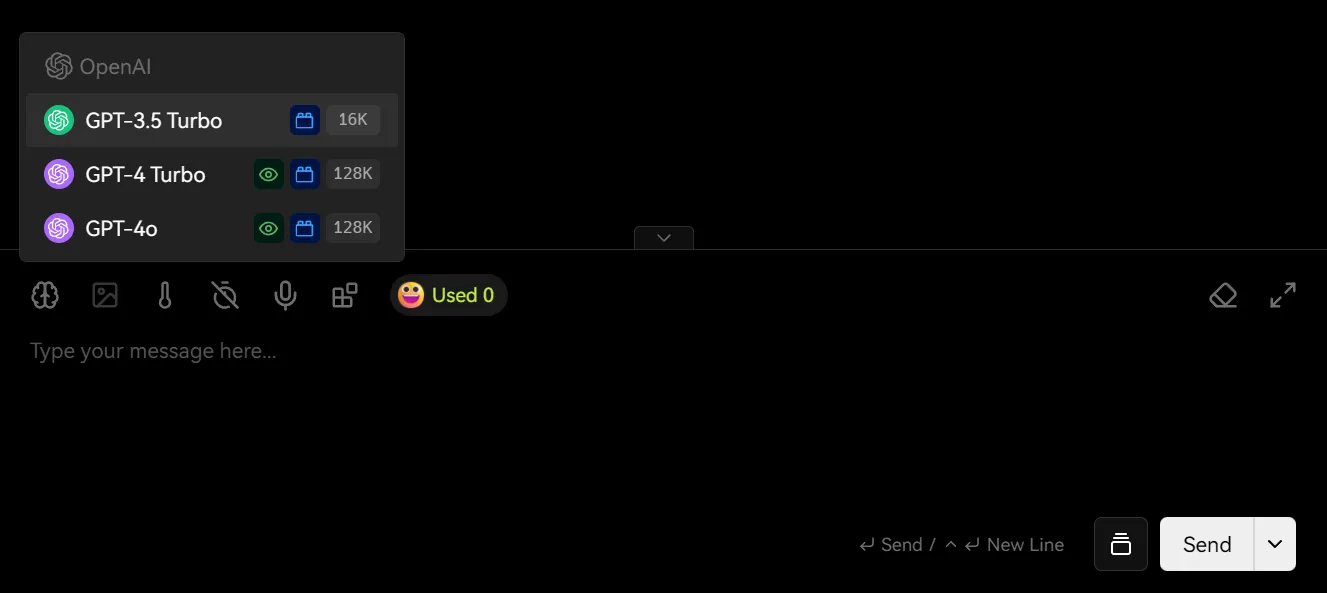
- Click Check to run a connectivity check. After passing, go back to the chat page and select the newly configured model from the model dropdown.
Self-hosted deployment environment variable example
OPENAI_API_KEY=YOUR_API_KEY OPENAI_PROXY_URL=YOUR_PROVIDER_API_URL